> For the complete documentation index, see [llms.txt](https://docs.jakarto.com/guide-jakartowns/llms.txt). Markdown versions of documentation pages are available by appending `.md` to page URLs; this page is available as [Markdown](https://docs.jakarto.com/guide-jakartowns/en/creating-and-managing-inventories/tableau-dinventaires.md).
# Using the Inventory Table
Every point, annotation, measurement, polyline, polygon, or 3D model you create in Jakartowns — or import into it — automatically appears in the inventory table, displayed at the bottom of the screen. It's the central place to view, organize, import, and export all the data you've collected.
## Table
Each row in the table corresponds to a measurement, whether it was created with the [inventory tools](/guide-jakartowns/en/creating-and-managing-inventories/creer-et-editer-des-entites.md) or imported. It shows its collection date, an identification name, additional information, and a note, to help you find your way through your surveys. Other attributes can be added as needed. The table can be sorted by column, and filtered by an attribute's value.
### Visited / Not Yet Visited Tracking
Each measurement can be marked as **visited** or **not yet visited**. Measurements that haven't been visited appear in bold in the table, making it easy to spot entries you haven't reviewed yet. Clicking a row in the table selects it, which toggles its status between not yet visited and visited.
### Favorite Measurements
You can mark a measurement as a **favorite** (star icon) to easily find it among all the entries in the table. The table can be sorted by favorites.
### Multi-Select and Bulk Actions
The table supports selecting multiple entries at once, using checkboxes. A bulk actions bar then appears to apply an action to the entire selection:
* select all or deselect all;
* show or hide the selected entries;
* mark or unmark them as favorites;
* mark them as visited or not yet visited;
* delete them.
This feature is particularly useful for quickly cleaning up or organizing an inventory with many entries.
### Locating an Entry from the Table
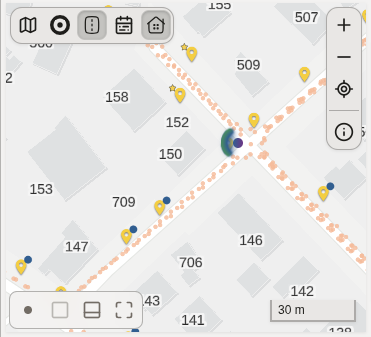
Hovering over a row in the table highlights the corresponding marker in the 3D view, letting you quickly locate an entry without having to select it. The visited/favorite status of each measurement is also visible directly on the 2D map.
## Symbology
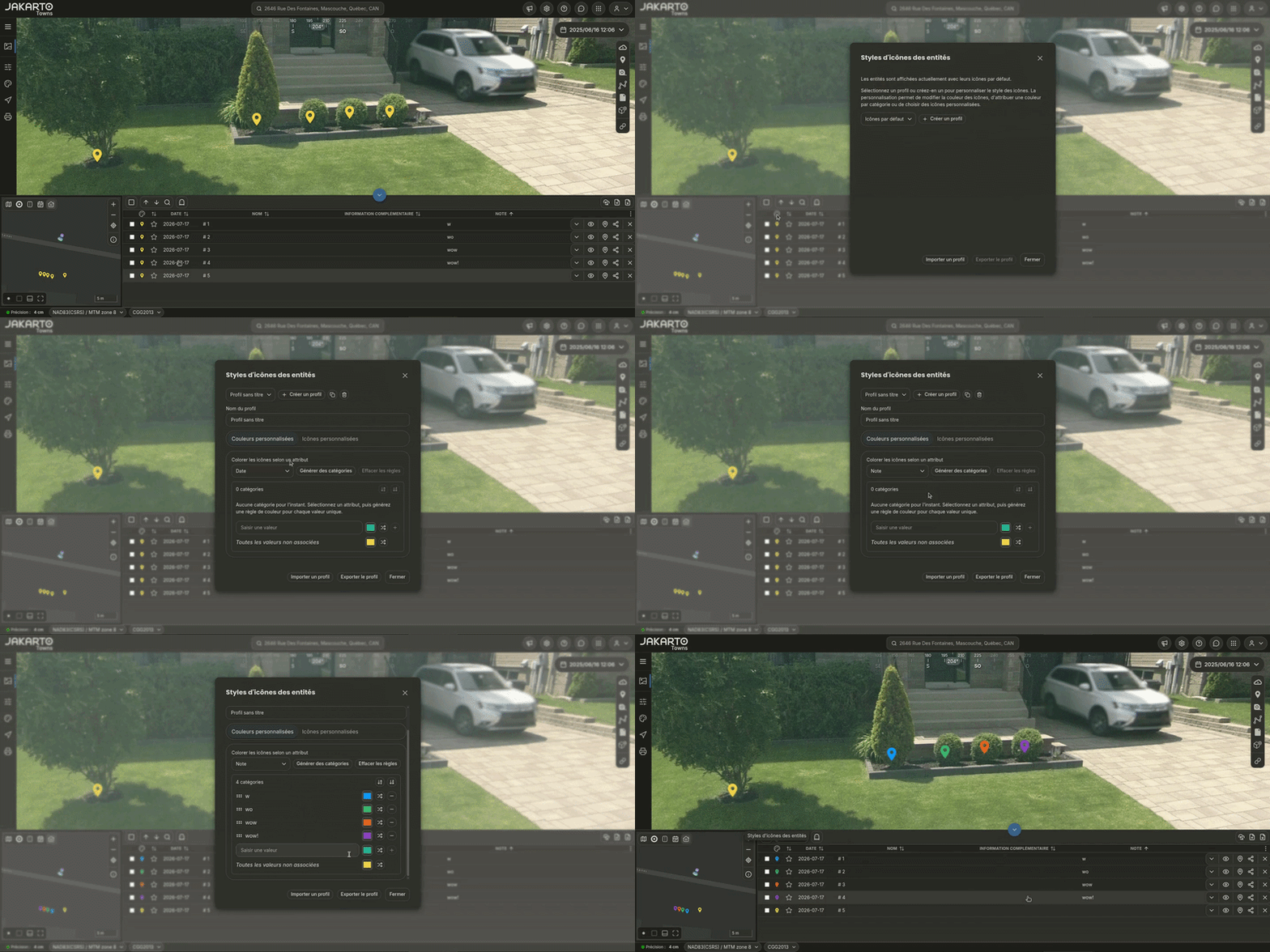
You can customize the color of table entries based on the value of an attribute, using a button located in the header of the table's marker column. This button opens the **Feature icon styles** window.
### Custom Colors
In the **Custom colors** tab, you can create, duplicate, or delete named profiles. Each profile maps the values of an attribute to a color:
* the **Generate categories** button automatically creates a color rule for each distinct value of the chosen attribute, plus an **All unmatched values** rule, which is always kept to cover unforeseen cases;
* rules can also be added or removed manually, and reordered by drag and drop;
* a profile can be exported and then re-imported, to reuse it or share it with other users.
### Custom Icons (P-Code)
A second tab, **Custom icons**, lets you associate your entries with PNG icons based on an attribute containing a **p-code**. You can pick from Jakarto's built-in icon library — designed in particular for road sign inventories, with its official pictograms — or supply the URL of a custom external icon library.
> \[!Important] When both methods are configured for the same entry, the icon associated with the p-code takes priority over the color rule.
The colors and icons defined in a profile apply to the markers in the table and on the 2D map, as well as to lines, polylines, and polygons.
## Data Import
Jakartowns lets you import your own inventories for viewing and use within the application.
Jakartowns supports the following formats:
* Shapefile format (.shp):
The files, including `.shp`, `.dbf`, `.prj`, etc., must be within a `.zip` file.
* GeoPackage format (.gpkg)
* GeoJSON format (.geojson)
To access this feature, you'll find a button in the top right of the inventory table that lets you import your inventory data into Jakartowns. You can also drag and drop a file directly into the application to import it.
When imported records are in 2D (xy only), the elevation of the entries will be determined automatically, using the elevation of the nearest panoramic image. The resulting estimated elevation will be close to ground level.
When importing a polygon, any holes are removed (only the outer boundary is kept) and multi-part polygons are automatically split into separate polygons; a message warns you when this simplification has been applied.
## Coordinate System
Imported inventories are reprojected into the coordinate systems used by Jakartowns.
### Vertical Datum
By default, Jakartowns uses the Canadian Geodetic Vertical Datum of 2013 (CGVD2013) in Canada. Imported 3D entities must be in this coordinate system; otherwise, shifts may occur.
> \[!NOTE] If a shift is present and measures around \~30cm, check that the imported inventory isn't in CGVD28.
## Performance
Your browser automatically keeps your measurements (created or imported) in its local storage, so you can find them again from one session to the next without having to reimport them. This local storage is limited to 2,500 measurements: beyond that, the oldest ones are gradually removed from local storage as new ones are added.
This limit applies only to automatic persistence in the browser, not to importing a file itself: a larger inventory can be imported and handled normally in Jakartowns. If you're working with a large inventory, remember to export it regularly so you don't rely solely on the browser's local storage.
Lastly, Jakarto is not responsible for the accuracy of the observed data or the transformations applied.
## Data Export
The application lets you export the created inventory in various formats:
* Shapefile (.zip),
* GeoJSON (.geojson),
* CSV (.csv),
* PNEZD (for AutoCAD Civil 3D),
* or a full Jakartowns backup (.json).
These options make it easier to use and view the data in different Geographic Information Systems (GIS), as well as to share the data with other users or between different systems.
To access this feature, you'll find a button in the top right of the inventory table that lets you export your inventory data in the formats you want.